TetherCam
Your iPhone as the camera for your Mac, over a cable.
Mac app · Open source · tethercam.app (opens another website)
What you do with it
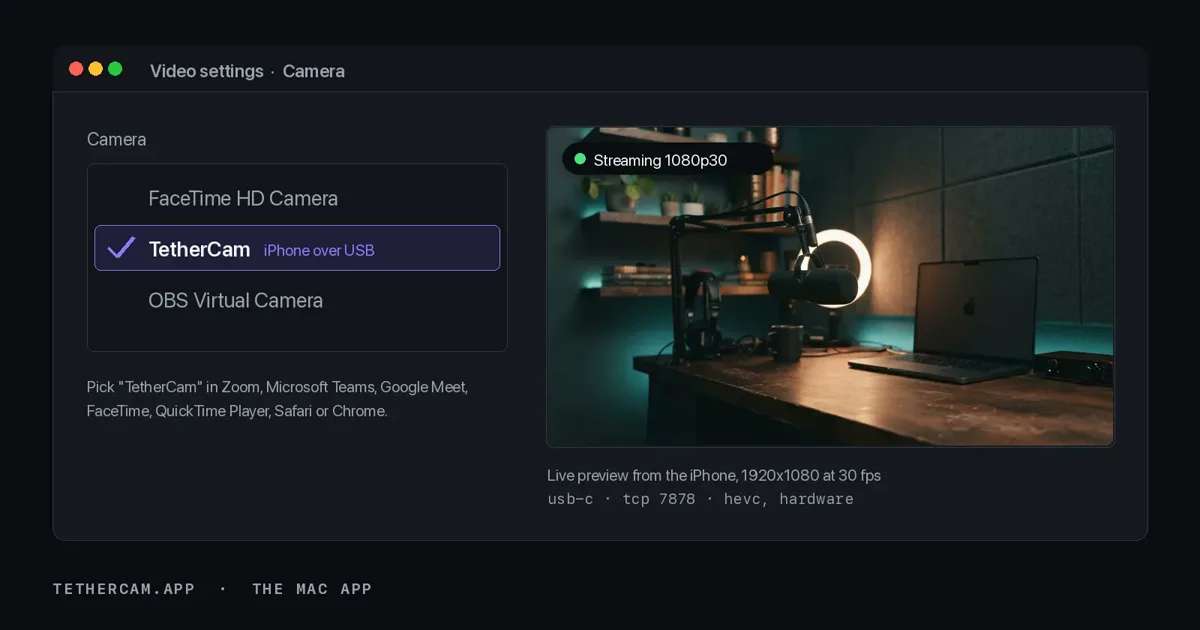
You have a video call tomorrow and the picture from your laptop camera looks grainy. You plug your iPhone into the Mac with a cable and pick the “TetherCam” camera in Zoom. Now the iPhone is filming you, with no Wi-Fi and no account.
- Who it's for
- For anyone who makes calls or records on a Mac and wants a better picture than the built-in camera gives.
- Where it stands
- The iPhone app is on the App Store, and the Mac app is a download from the website. Both are open source.
Step by step
Get both apps
You get the iPhone app from the App Store and the Mac app from the website. You don't need an account.
Plug in the cable
You connect the iPhone to the Mac with a USB cable. The iPhone encodes the picture itself and sends it down the cable, not over Wi-Fi.
Pick the camera
In Zoom, Teams, Meet or FaceTime you choose “TetherCam” as your camera. From then on the call shows the picture from your iPhone.
Or use OBS
If you record with OBS, a separate plugin brings in the picture and the sound from the iPhone too. The Mac app only carries the picture.
How it works
- No language model
- is involved here.
- The code
- encodes the video on the iPhone and offers it to the Mac as a camera, with no Wi-Fi, cloud or account.
Why it exists
When I tried to use my iPhone as a camera on my Mac, the picture stayed black because the versions didn't match. I wanted a small tool I could read and fix myself.